Personalizing Sublime
YoungForest · https://youngforest.github.io/en/2017/01/18/sublime-personlize/
[Abstract] Sublime Text 3 is a powerful editor. I officially started using it in the second semester of sophomore year. After half a year of continuous exploration, I configured Sublime into a personalized editor that satisfies most of my daily coding needs.

Configure Different Settings for Different Languages
First, open any file in that language. Go to Sublime Text 3 -> Preferences -> Settings - Syntax Specific to enter that language’s settings file, then modify and save the settings file.
Reference: setting different indentation for different languages
Color Scheme
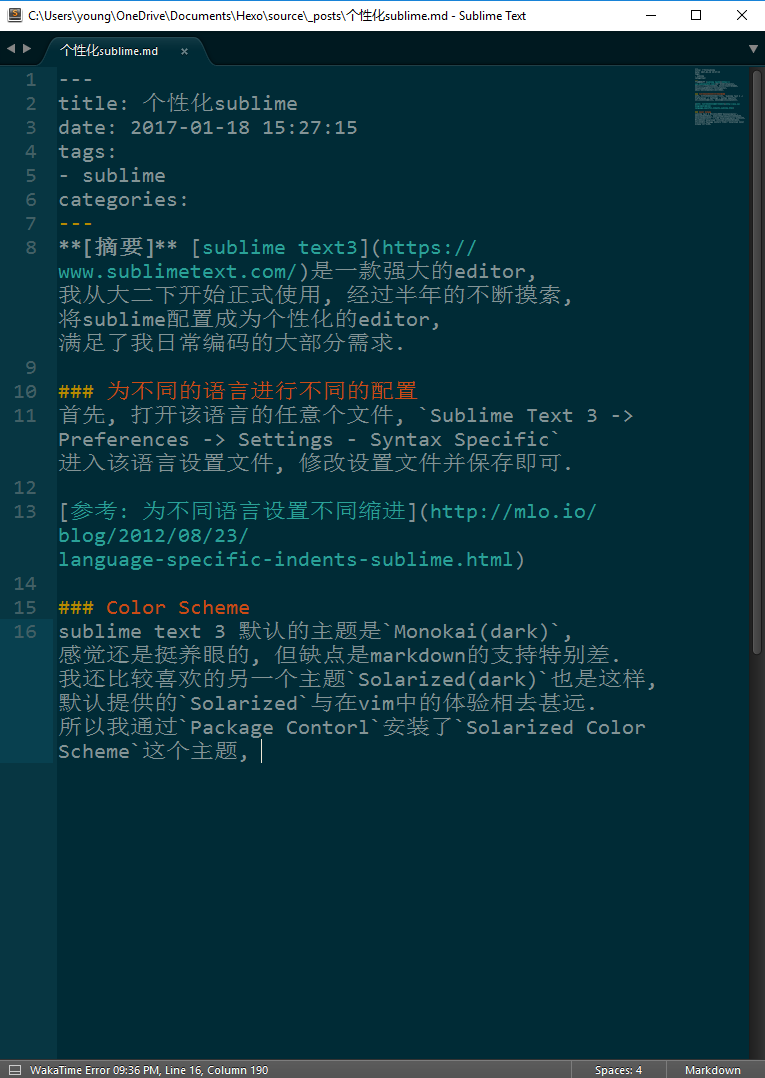
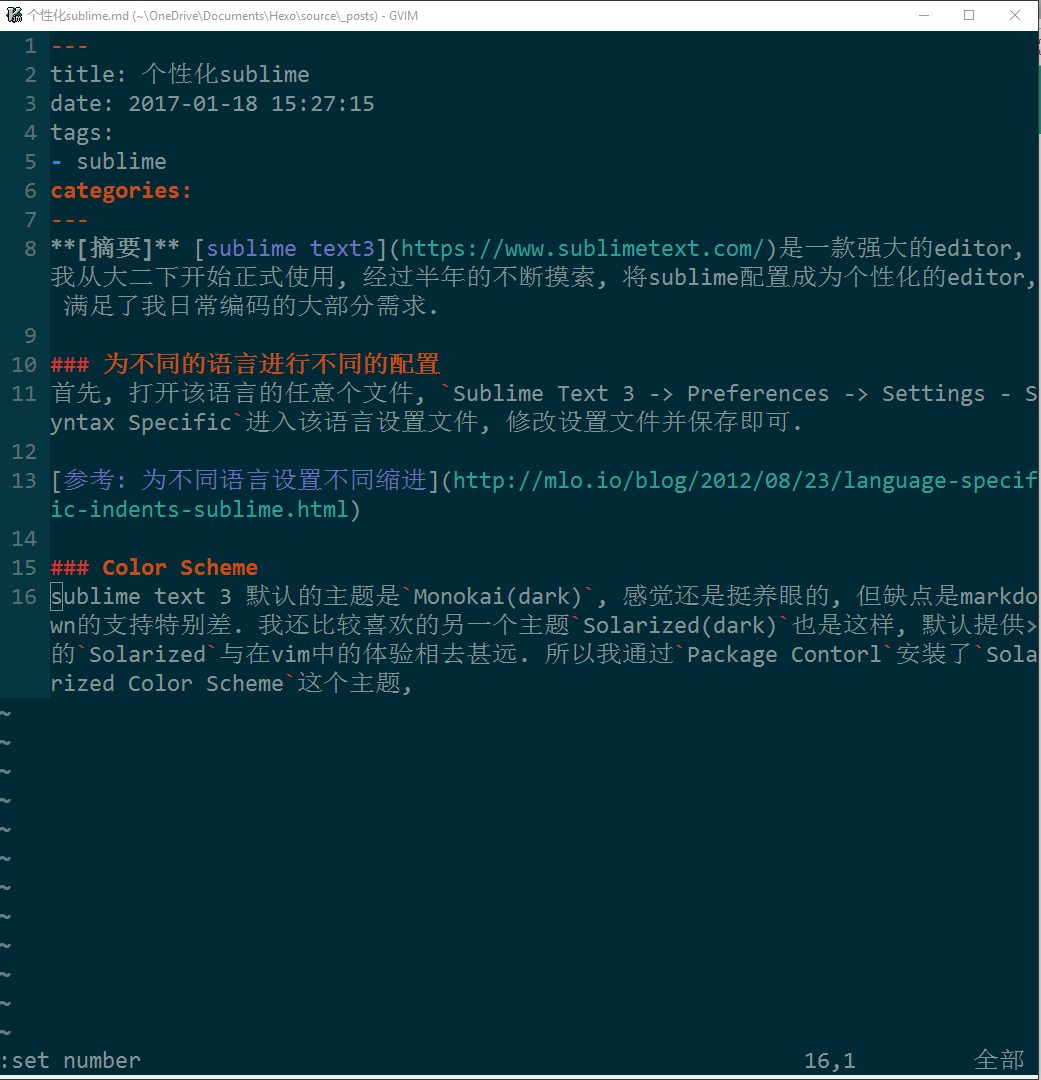
The default theme of Sublime Text 3 is Monokai(dark). I think it is quite easy on the eyes, but the disadvantage is that its Markdown support is especially poor. Another theme I like, Solarized(dark), has the same problem. The default Solarized experience is far from what it feels like in Vim. So I installed the Solarized Color Scheme theme through Package Contorl. Compared with Vim below, it is still quite pleasant to look at.